Project status update template
A weekly or monthly update: status at a glance, progress, risks, decisions needed and next steps.
Every slide in this template
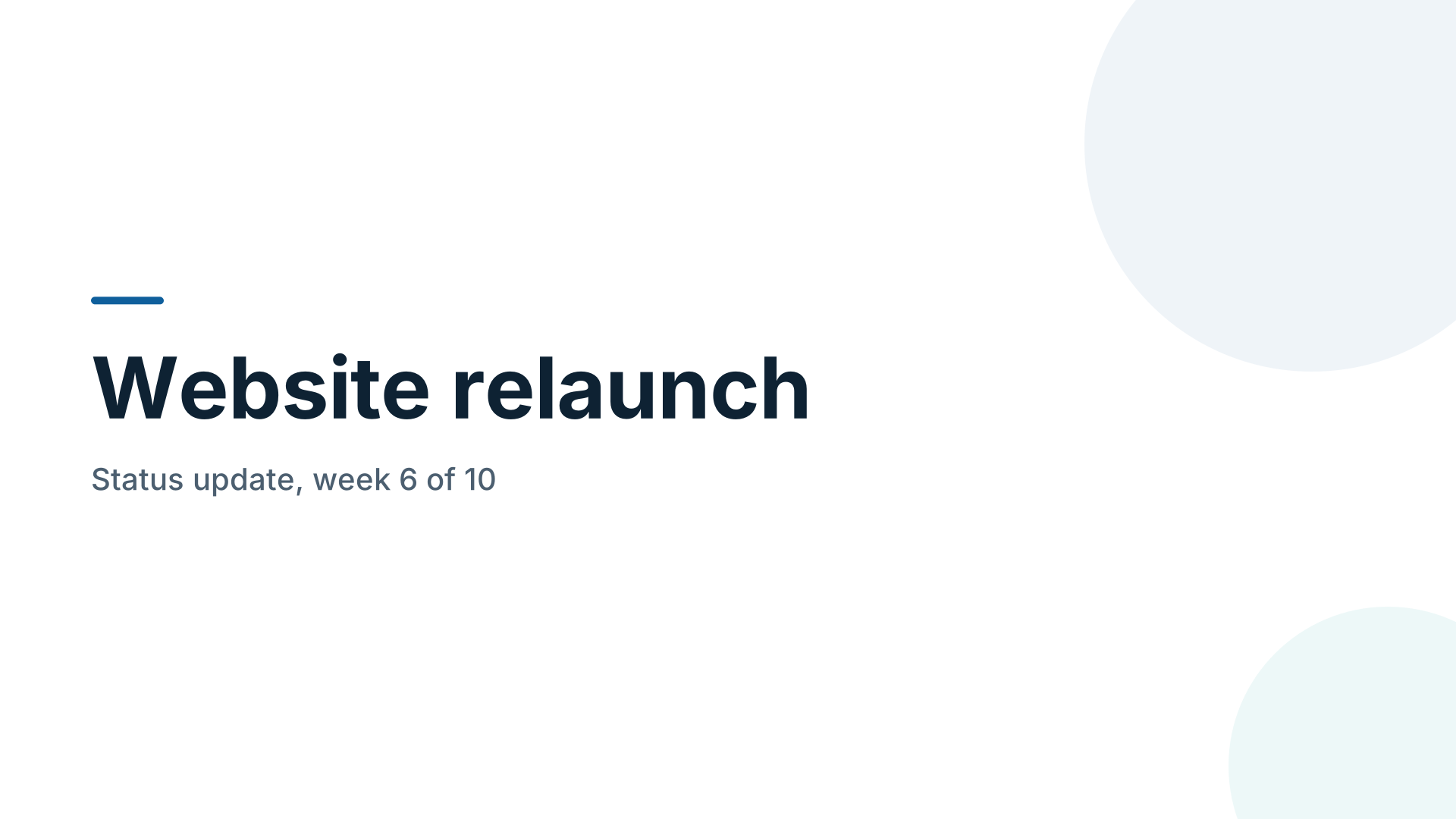
- 1. Website relaunch
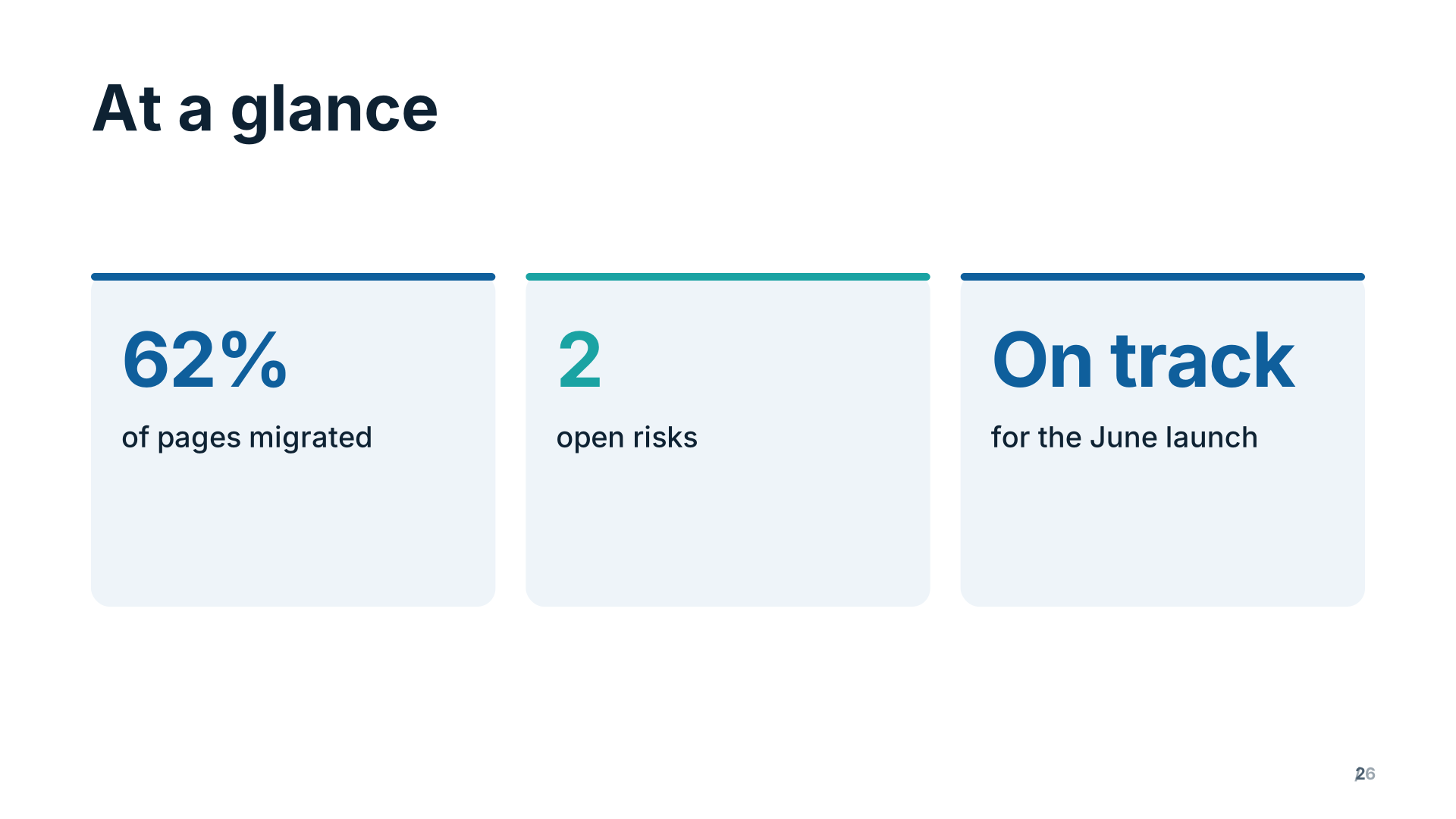 2. At a glance
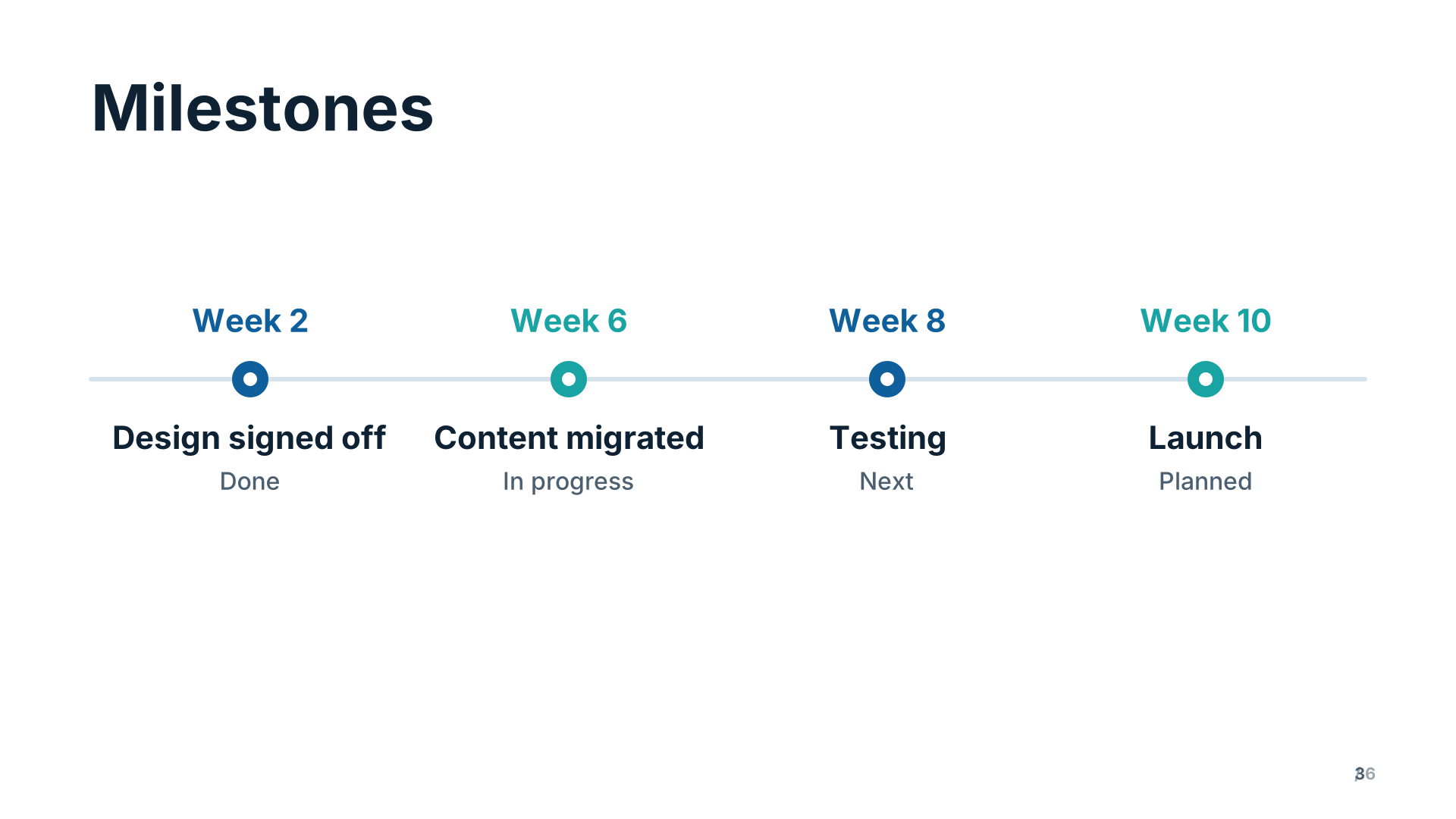 3. Milestones
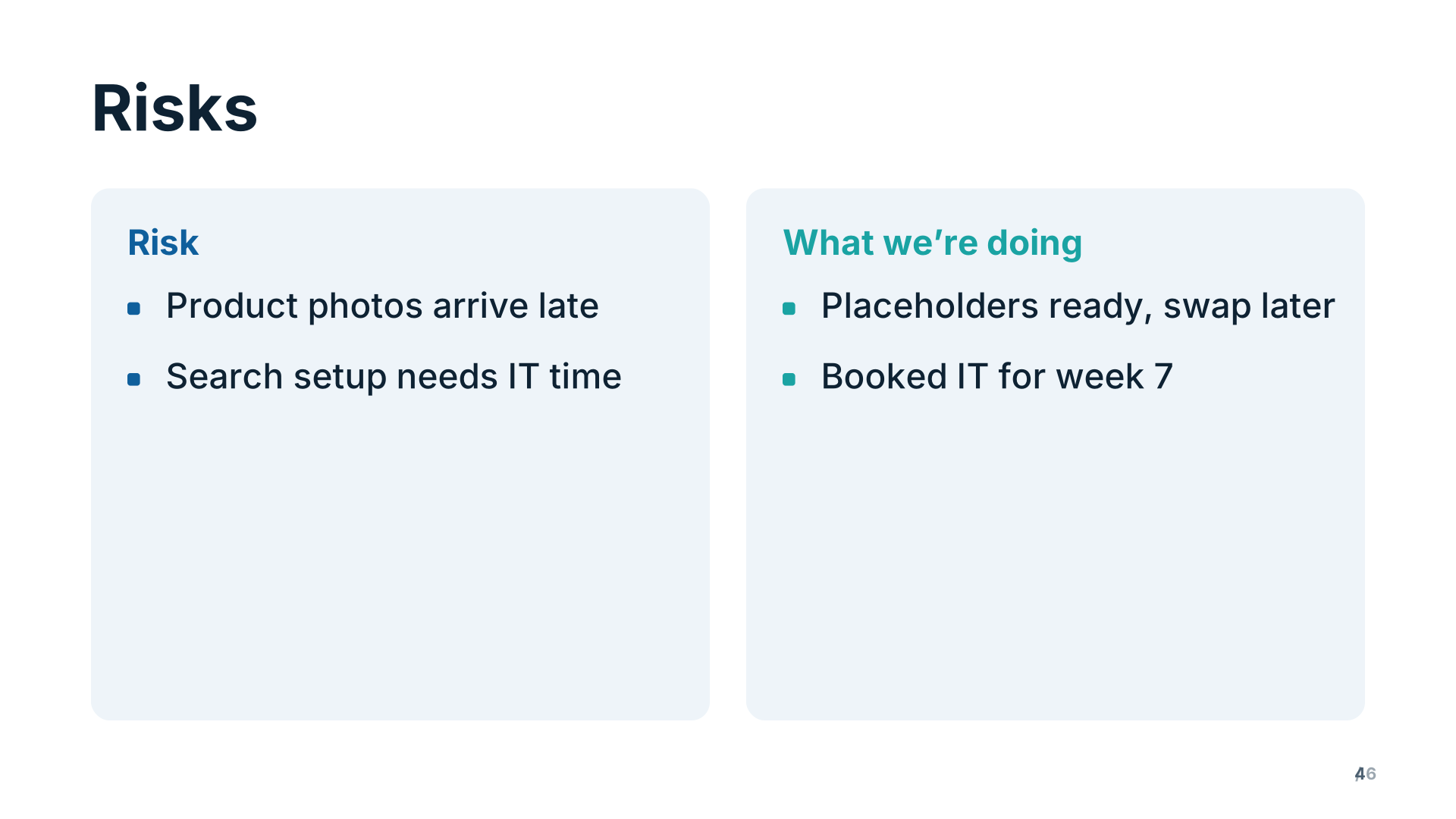 4. Risks
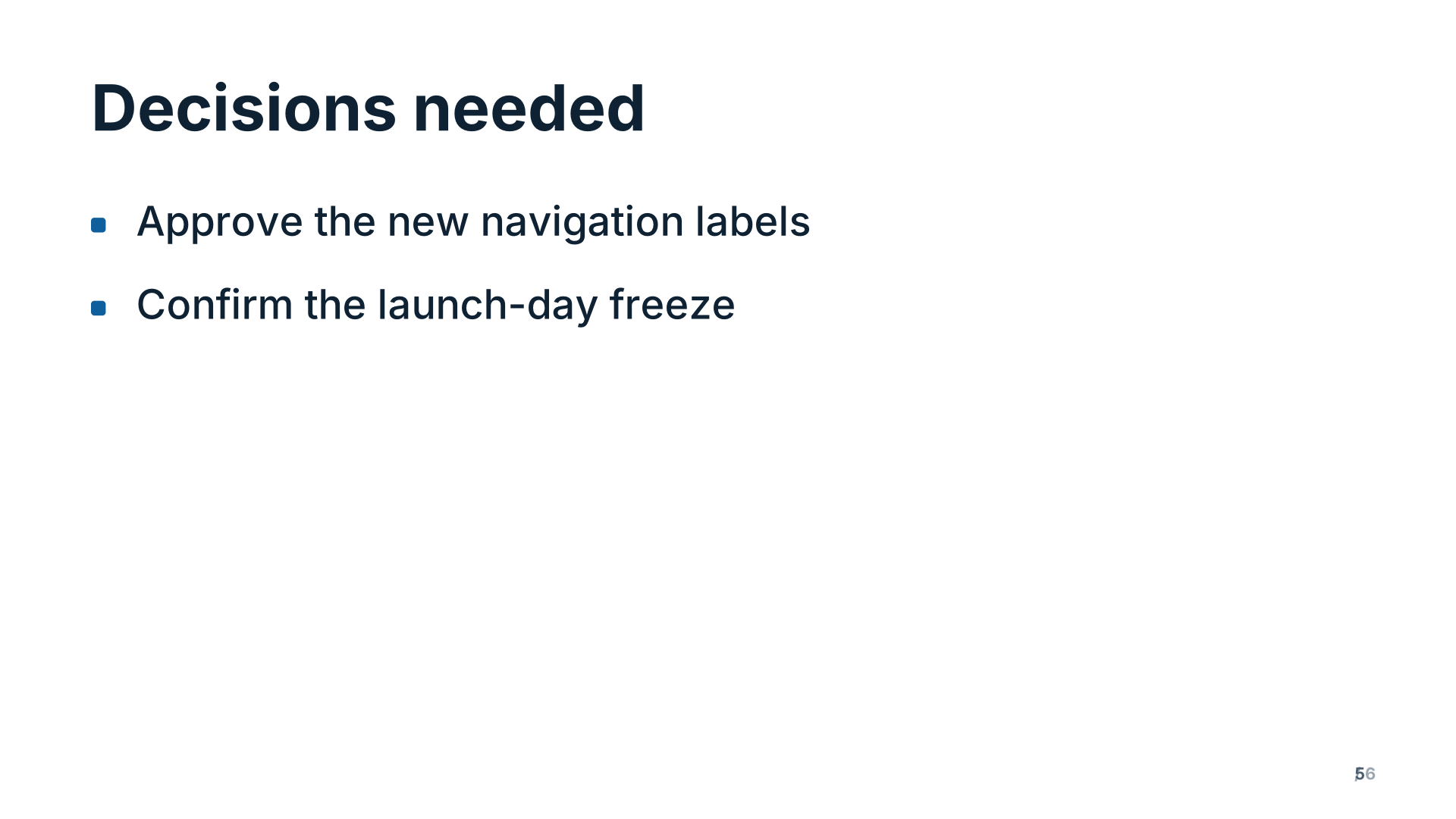 5. Decisions needed
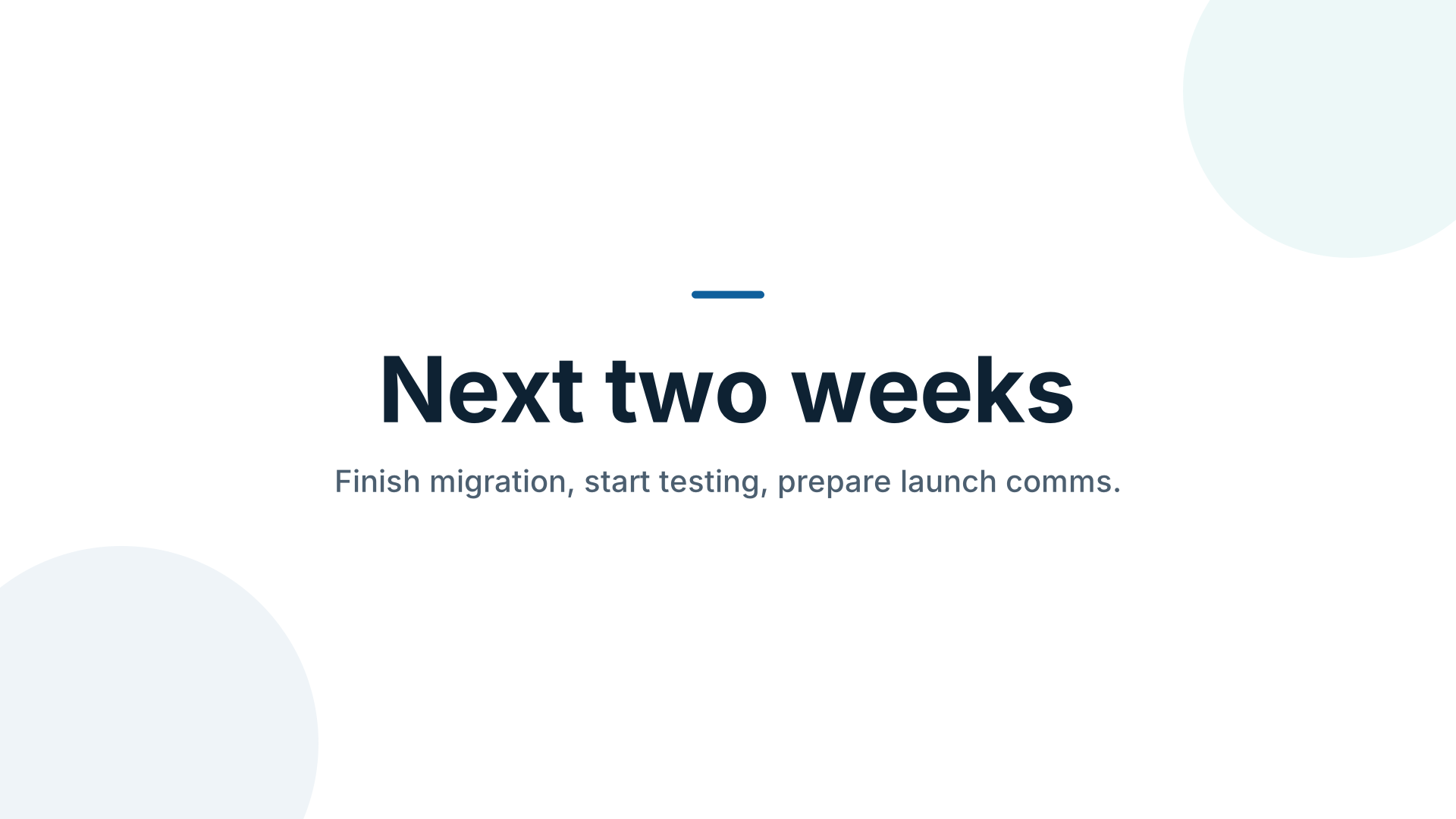 6. Next two weeks
What’s inside
6 slides in the Ocean theme, each with speaker notes. Example names and figures are placeholders: replace them with your own.
- Website relaunch Title
- At a glance Big numbers
- Milestones Timeline
- Risks Two columns
- Decisions needed Bullets
- Next two weeks Closing
When to use it
For a weekly or monthly update to a sponsor, a steering group or the wider team, when people need to know in five minutes whether the project is on track and what they must decide. It suits software projects, marketing campaigns, construction and events alike. Use it the same way every time and people learn to read it at a glance.
Making it yours, slide by slide
- Title. The project name and the reporting period (“week 6 of 10”), so people know where you are.
- At a glance. Three or four key figures: percent complete, budget spent, days to launch, open issues. Pick the same ones every update so changes stand out.
- Milestones. Mark what is done, what is next and anything that has moved. If a date slipped, say so here rather than burying it.
- Risks. Two columns: the risk and what you are doing about it. Only list risks someone could act on.
- Decisions needed. The most important slide. Each bullet is a question with a deadline: “Approve extra testing budget by Friday”.
- Next two weeks. What the team will deliver before the next update.
Common mistakes
- Reporting activity (“held 12 meetings”) instead of progress.
- Hiding bad news on a later slide. Sponsors trust updates that lead with problems.
- Asking for decisions without the options. Put the options in the speaker notes so you can answer at once.
How long it runs
Six slides take five to ten minutes, leaving the rest of the meeting for the decisions. Duplicate last update’s deck from My decks and change the figures; it takes a few minutes.
Two ways to use it
- Edit it directly. Open it in the studio and change the words, pictures and chart values in the side panel.
- Have your AI write your version. Copy the prompt below into ChatGPT, Claude or Gemini, fill in your topic, and paste the answer into the studio. You’ll get the same structure with your content.
Create a report or update about: a project status update about [your topic], following this outline: Website relaunch; At a glance; Milestones; Risks; Decisions needed; Next two weeks

Details:
- Audience: a general audience
- Number of slides: 6
- Tone: professional

[…then the reply format and rules the studio reads. The button copies them too.]
What the format and rules part says, and why: the full prompt, explained.
Free to use for school, personal and commercial presentations. Present it full screen for free; with Pro, use your phone as the remote and download it as a PDF.
Questions
How often should I update it?
At whatever rhythm your sponsors meet: weekly for short projects, monthly for long ones. Keep the same slides so people can compare updates.
Can I show status colors like red, amber and green?
Write the status in words on the at-a-glance slide (“On track”, “At risk”) rather than relying on color, so it reads for everyone, including in print.
How do I keep old updates?
Duplicate the deck for each update in My decks, and download a PDF (Pro) of each for the project record.
Last updated .