Guide · Stage and events

What is a confidence monitor?

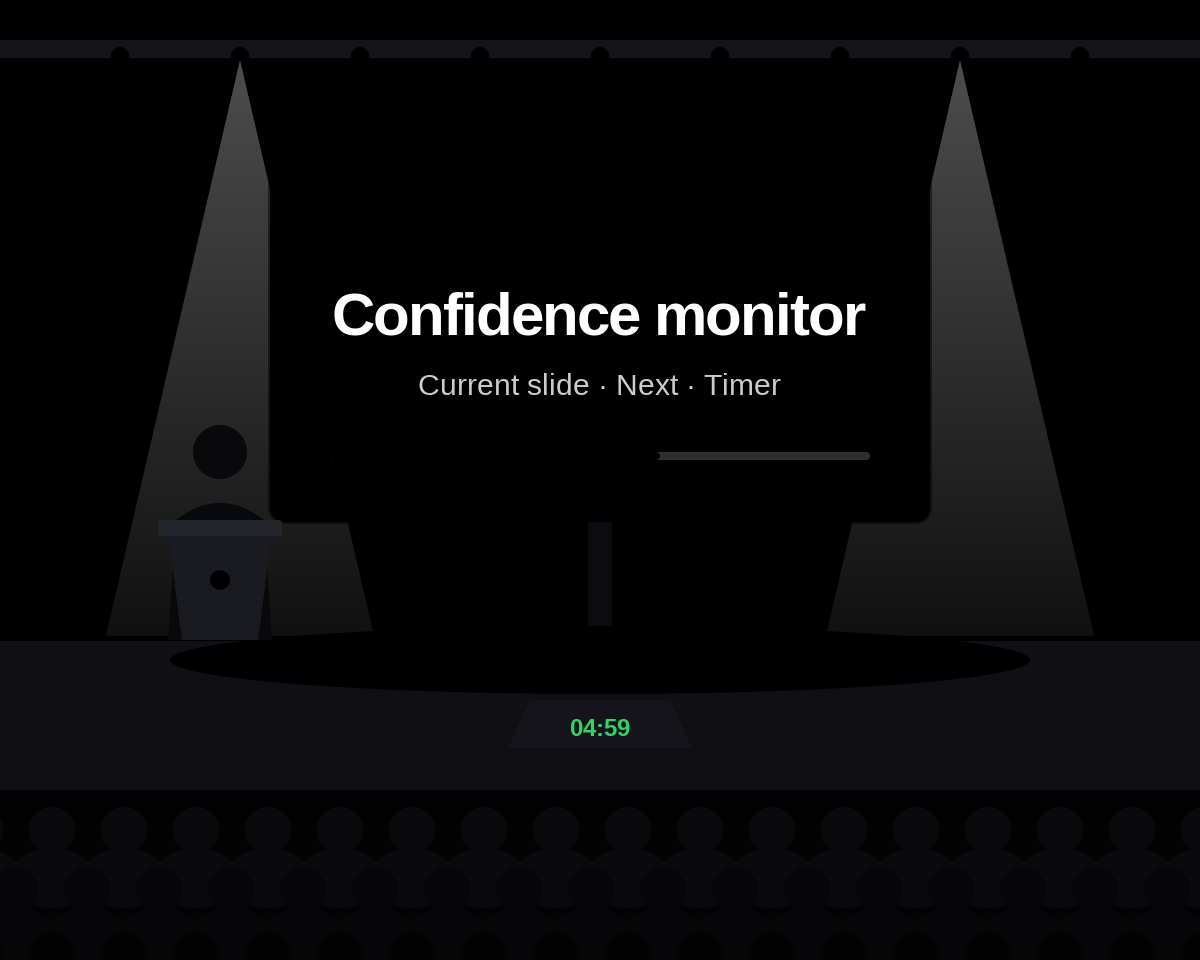
A confidence monitor is a screen facing the speaker, usually at the front edge of the stage, that shows what the audience sees plus a little help: the next slide, short notes and a timer. Here’s how it differs from a teleprompter and how to set one up.

  1. Know the difference from a teleprompter
  2. Decide what to show on it
  3. Put it where the speaker can glance down
See the setup options

Runs beside the tools your events already use. Not affiliated with the companies named.

Confidence monitor vs teleprompter.

A teleprompter scrolls a full script so the speaker can read every word while looking toward the audience or the camera. A confidence monitor shows the presentation itself, usually the current slide, the next slide, short notes and a countdown, so the speaker can glance down and keep going without turning to the big screen.

Speakers who know their material well tend to prefer a confidence monitor. Speakers delivering exact wording, like an earnings call or a sensitive announcement, need a teleprompter. Many events use both.

You don’t need special hardware.

A confidence monitor is just a screen and something to drive it. Any monitor at the foot of the stage, connected to a laptop, will do. What matters is what’s on it: a clear current slide, a preview of the next one, notes in large type and a countdown the speaker can trust.

PresenterCue turns any laptop or monitor into a confidence monitor and lets the production desk or the speechwriter send cues to it during the talk.

Confidence monitor software for event producers →

Setting one up

What to show, where to put it and what to avoid.

FAQs

Common questions about confidence monitors.

What is a confidence monitor?

A screen facing the speaker, usually at the front of the stage, that shows the current slide, the next slide, short notes and a timer, so the speaker doesn’t have to turn around to look at the main screen.

What’s the difference between a confidence monitor and a teleprompter?

A teleprompter scrolls a full script to be read word for word. A confidence monitor shows slides, short notes and time. Use a teleprompter when exact wording matters and a confidence monitor when the speaker knows the material.

Why is it called a confidence monitor?

Because it gives the speaker confidence: they can check where they are in the presentation and how much time is left without breaking contact with the audience.

Do I need special equipment for a confidence monitor?

No. Any monitor or TV at the foot of the stage, connected to a laptop running the right software, works as a confidence monitor.

Turn any screen into a confidence monitor.

PresenterCue runs in the browser, with cues from your production desk.

What to show

What to show

From this guide

What to show

Most speakers want the current slide, the next slide, short notes and a countdown. More than that becomes hard to read at a glance.

Current slide
What the audience sees
Next slide
So transitions are smooth
Notes and timer
Large type, a few words

What it covers

  • Current slide
  • Next slide preview
  • Short notes, not paragraphs
  • Countdown or clock
What to show

Writing notes for it

From this guide

Writing notes for it

Notes on a confidence monitor should be prompts: a word or a short phrase per point. If the speaker needs full sentences, use a teleprompter instead.

Length
A few words per point
Type size
Readable from the stage
Alternative
Teleprompter for full scripts

What it covers

  • One prompt per point
  • Key numbers written out
  • Names spelled as said
  • No full paragraphs
Where

Where to put it

From this guide

Where to put it

The usual spot is the front edge of the stage, angled up toward the speaker. Large stages often use two, one on each side, so the speaker can move.

Position
Front edge of the stage
Angle
Tilted up toward the speaker
Big stages
One on each side

What it covers

  • Out of the audience’s sightline
  • Speaker can see it standing
  • Two for wide stages
  • A clock at the back of the room too
Where

For virtual talks

From this guide

For virtual talks

On a video call, the equivalent is a small window placed right under the webcam, so the speaker’s eyes stay near the lens.

Position
Just under the webcam
Size
Small window
Tip
Share only the slides window

What it covers

  • Window under the lens
  • Notes in large type
  • Slides shared separately
  • Timer visible
Mistakes

Common mistakes

From this guide

Common mistakes

The most common problems are text that’s too small, a monitor placed where the speaker has to look down sharply, and a timer that doesn’t match the stage manager’s clock.

Text
Too small to read
Placement
Too low or too far
Timer
Out of sync

What it covers

  • Test from the speaker’s spot
  • Match the timer to the run of show
  • Rehearse with it on
  • Have a backup screen
Mistakes

Cues from the desk

From this guide

Cues from the desk

When the event runs late or a segment is cut, the speaker needs to know. A confidence monitor that can show cues from the production desk saves a lot of frantic hand signals.

Examples
Time checks, skips
From
Production desk or speechwriter
Seen by
Only the speaker

What it covers

  • Cut a section
  • Speed up or slow down
  • Repeat the question for the stream
  • Wrap up now

Share this page

Send this page to whoever runs your town halls, earnings calls or events.